
This post will show you how to connect to the web through a U.K VPN. i.e. when you visit websites, you will see them as they would be seen from the UK. For example if we visited google.com over the VPN, we would see the U.K version of Google.
We will be using the free VPN provided by bestukvpn.com
Section 1. The initial Set up of your VPN
- Go to Spotlight and type in Network, then click on Network under System Preferences
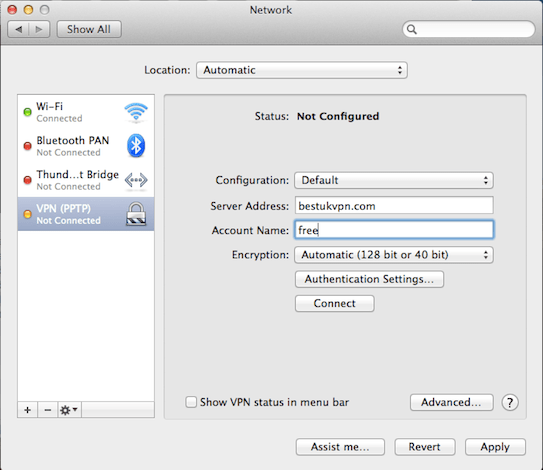
 2. Click on the + icon in the bottom left corner of the window, then enter in the following details. For the Interface, select: VPN, for VPN Type, select PPTP, then give it any name you like, for the Service Name. I’m sticking with the default VPN (PPTP). Then press create.
 3. Next we will fill in the specific details of the VPN host. Select the Interface you have just created in the left hand side window, then fill in the following details. For Server Address, enter bestukvpn.com, and for Account Name enter free, then press Apply.
Note: I like to also select the box Show VPN status in menu bar, this makes connecting easier once you’re all set up. Make sure to press Apply again, if you make this selection after the above.
Section 2. Using your VPN Interface
Now that your VPN Interface is set up, it will need to be Authenticated each time you use it. When you are ready to connect, follow these steps
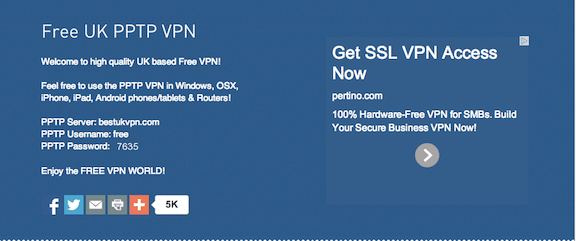
- Open your web browser and enter the following url: bestukvpn.com. Here you will see a blue box with some information in it, look for the number written next to PPTP Password, in this example the number is 7635 but this will change periodically. Copy this number.
Note: Each time the number changes you will need to follow these steps again to log in to the UK VPN, this prevents people from staying permanently logged in.
2. Open the Network window in the same way we did in Section 1.1. Select the Interface you created in Section 1. In our example this was called VPN (PPTP) Then click on the Authentication Settings button.
3. Then paste the password into the window that opens, hit ok then then hit apply.
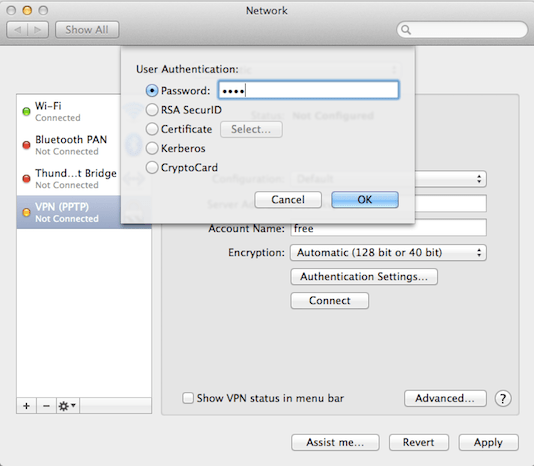
4. Now to connect to the internet through the UK VPN, just hit connect.
5. Optionally you can now visit the URL whatismyipaddress.com/ to ensure that you have a UK IP address before you continue browsing
Note: If in section 1 you selected Show VPN status in menu bar, you can now connect and disconnect using the icon in the top right corner of the screen.
 Robert David West